Start with the final result
This guide uses one theme to create a miniature model image, generate a collapse animation, reverse that clip into a build-up animation, and then make the surrounding scene feel alive.
Step 1: Generate the miniature model
User Input Theme: McDonald's

Based on the user's input [Theme/Brand/Model Name], generate a highly finished 45° top-down isometric miniature 3D architectural model poster.

Visual Requirements
Perspective: -45° top-down isometric / axonometric

Style: Miniature model feel, toy-like, clean, and centered composition

Base: Small elevated pedestal holding the main building and minimal surrounding environment

Details: Optional minimal elements like figures, greenery, tables, chairs, street signs, streets, and steps

Characters: Cute and simplified figures with no facial details

Aesthetic: Premium, restrained, and tidy, resembling a luxury brand display or design proposal

Framing Requirements
Dimensions: Square composition, 1080x1080

Layout: Perfectly centered layout

Exclusions: No complex backgrounds, cluttered decorations, over-realism, or messy streetscapes

Output Goal
Create a premium visual combining:
- a white background
- authentic brand color system
- high-end architectural model texture
- miniature isometric architecture

Ideal for brand showcases, conceptual proposals, social media covers, or series creation.
Replace McDonald's with your own theme or brand name. Keep it specific enough for the model to understand the building type, but avoid adding too many side details.
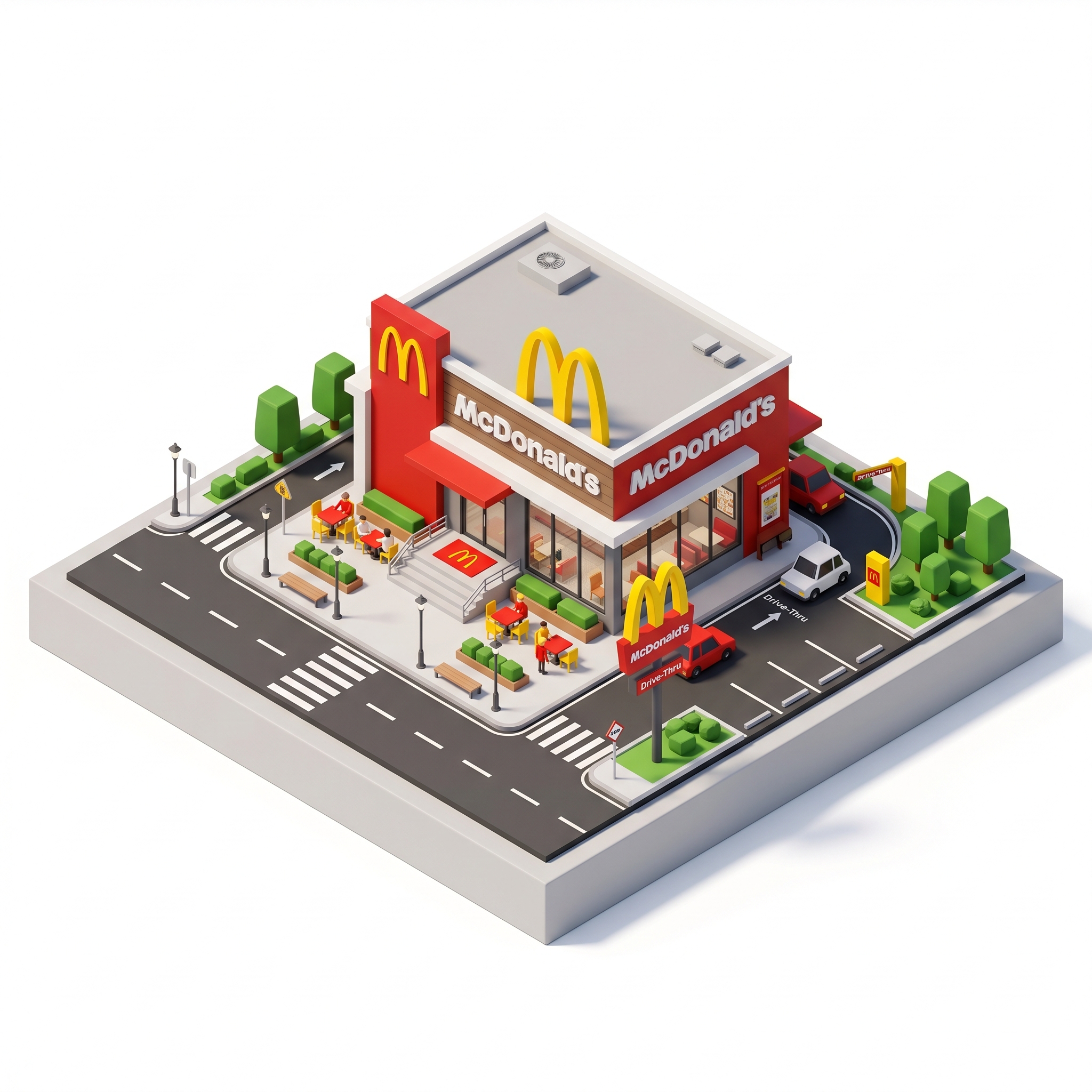
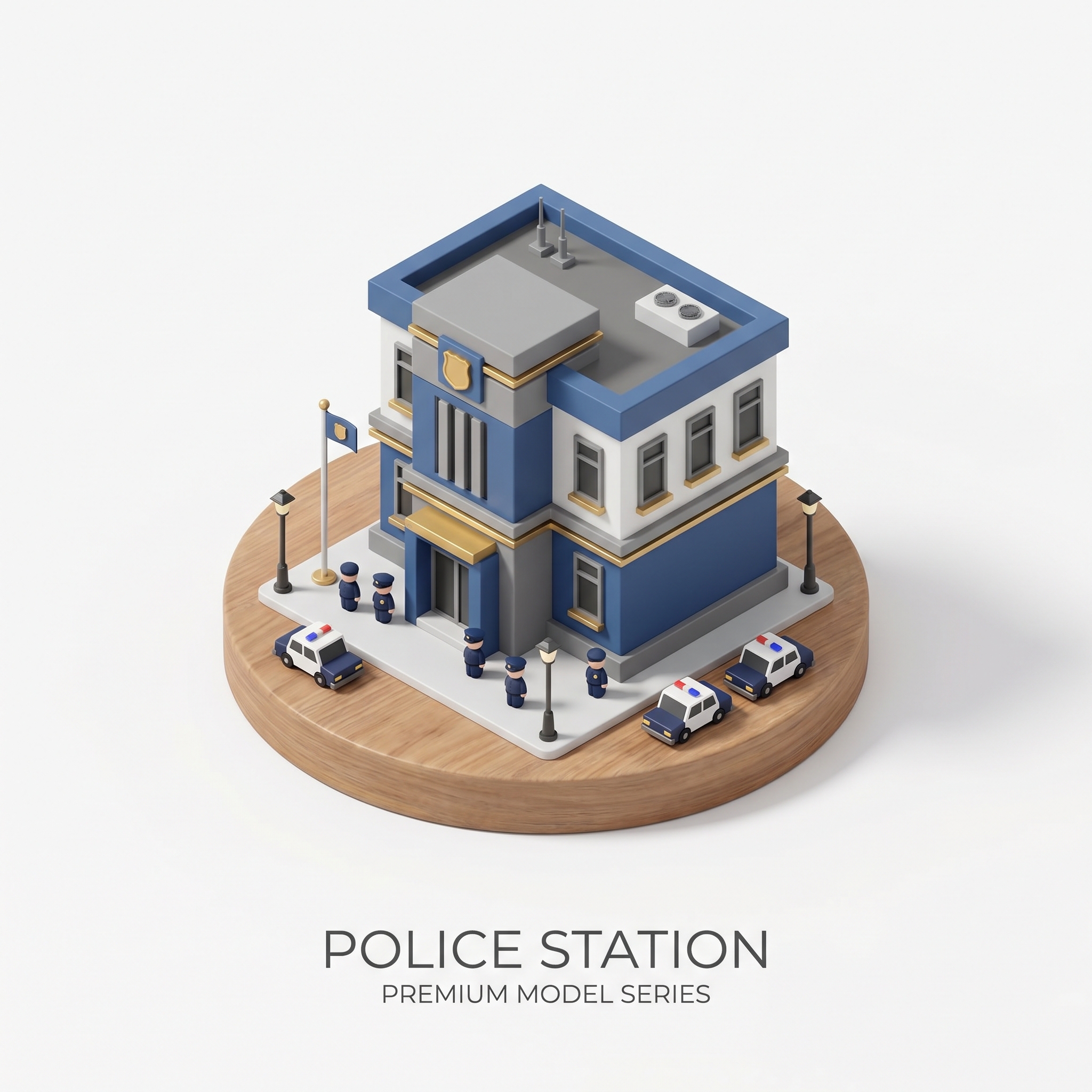
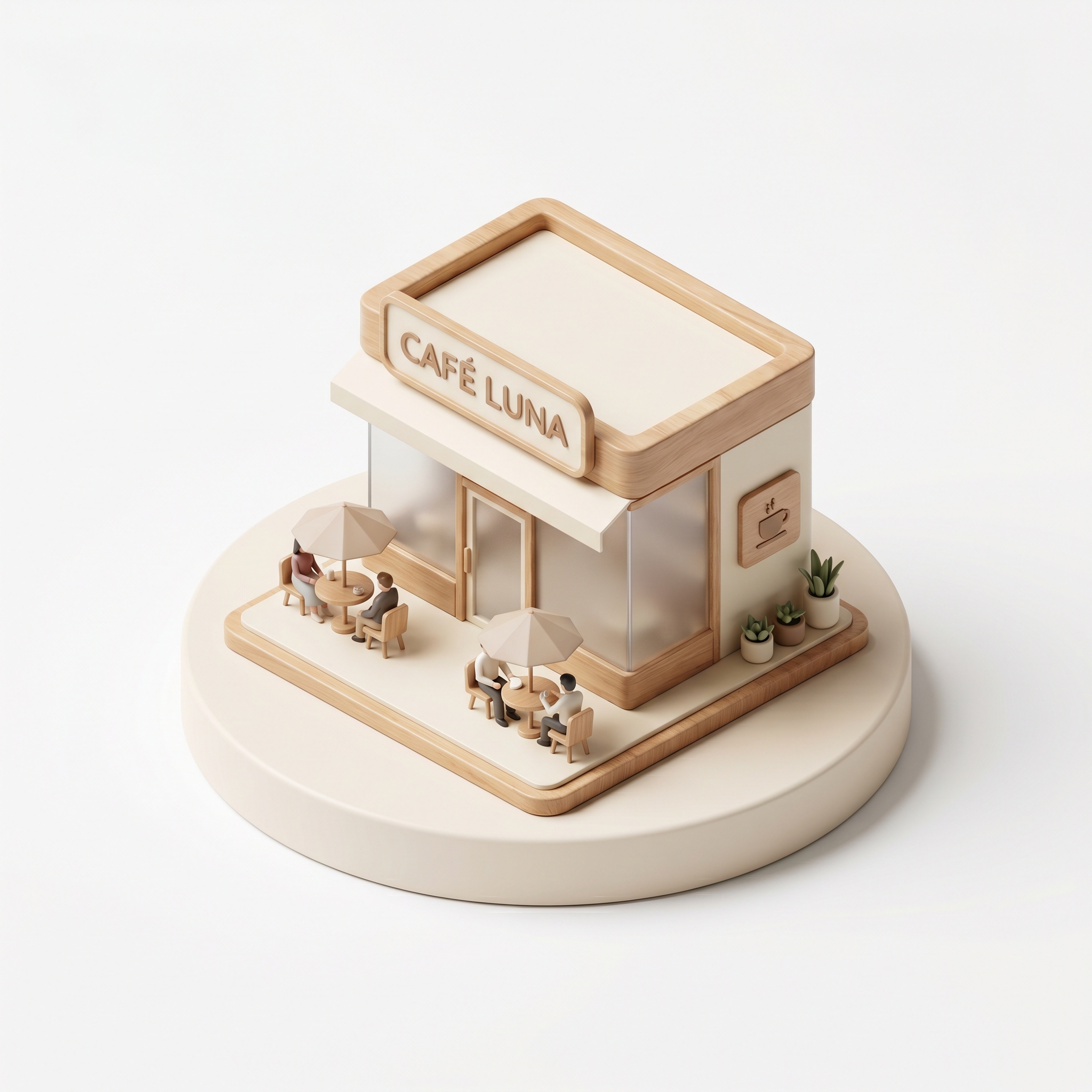

The result from this step becomes your start frame for the next two video prompts.
Step 2: Create the collapse clip, then reverse it
0-1s:
The animation begins with the complete miniature model exactly as shown in the start frame.
The camera smoothly and slightly pulls back as the deconstruction process initiates.

1-2s:
All lighting elements, interior glows, and material reflections visible on the structure gradually dim and power off completely.
Fine textures lose their brightness.

2-3s:
All secondary standalone objects, peripheral props, and environmental elements strictly present in the start frame rapidly shrink, pop down, and disappear into the ground.
Absolutely no new assets are generated.

3-4s:
Rooftop structures, facade attachments, and external decorative components fold away and retract into the main core.
The overall layered composition becomes flatter.

4-5s:
The main architectural body, including its walls, structural pillars, and primary frames, smoothly disassembles from top to bottom.
It collapses and flattens completely into the base foundation.

5-6s:
All ground markings, surface textures, and layout lines automatically fold backward and vanish into the foundation.
The video seamlessly ends with only the empty, clean, light gray isometric platform matching the end frame.
Google Flow is not always good at this kind of first-frame / last-frame transformation. If you put the finished building as the last frame, it may generate a totally unrelated building first, then suddenly jump to your miniature model.
The workaround is to do the motion backwards: generate the complete miniature model collapsing into a clean base, then reverse the video. The reversed version becomes the smooth build-up animation you actually want.
Step 3: Bring the miniature scene to life
Camera:
Completely static camera.
Maintains the exact fixed isometric 3/4 perspective from the start frame with zero camera movement.

Environment:
The building, signs, trees, and roads remain perfectly still and stationary.

Animation:
Tiny miniature cars drive smoothly along the dark gray roads and move through the drive-thru lane.
The minimal figures (people) walk subtly around the outdoor seating tables and across the crosswalks.
Smooth, seamless, toy-like animation loop.
This version keeps the camera and building locked. Only the small elements move, so the scene feels like a premium toy model instead of a messy AI video.
Summary workflow
- Generate the miniature model image from one clear theme.
- Use first-frame / last-frame generation to create the collapse version.
- Reverse the collapse video to turn it into a build-up animation.
- Use the live-scene prompt to add subtle cars and people movement to the miniature model.